Audit log
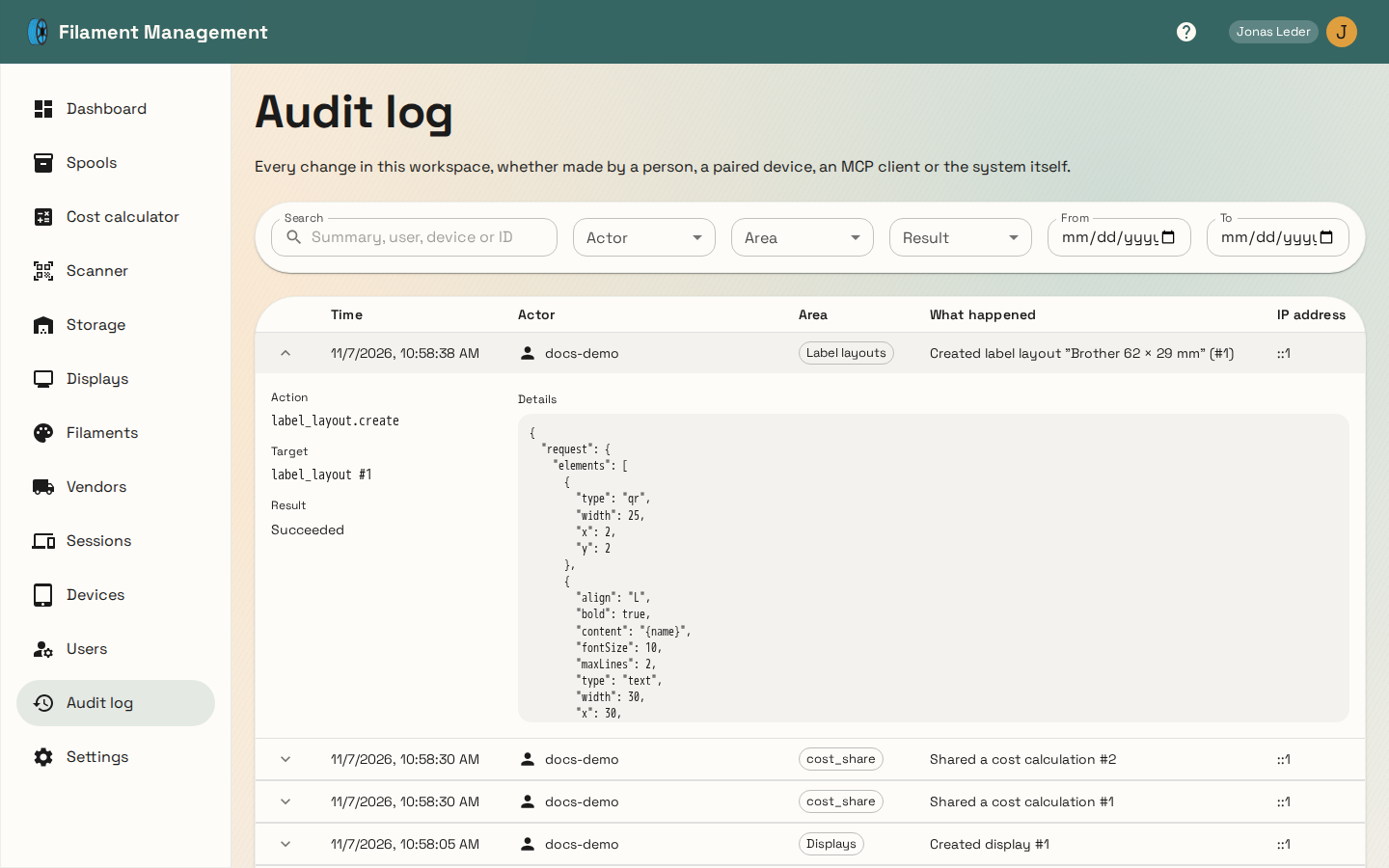
The audit log records every change made in your workspace and who made it. Admins can open it from Audit log in the navigation.
Who shows up in the log
Each entry names its actor, the person or thing that made the change:
| Actor | Meaning |
|---|---|
| User | Someone signed in to the web app. For sign-ins, the browser or device they used is shown under their name. |
| Device | A paired device, such as an e-ink display or scale, acting for the user who paired it. The device name is shown under the user. |
| MCP client | An AI assistant connected through the MCP server, acting for the user who approved it. The client name is shown under the user. |
| System | Filament Management itself, from background tasks. Examples: removing expired sessions, re-sending an image to an e-ink display after it rebooted, creating an account on someone's first OpenID Connect sign-in, and removing old audit log entries. |
What gets recorded
- Creating, changing and deleting vendors, filaments, spools, storage locations and slots, displays, Home Assistant shortcuts and label layouts
- Spool weight changes, imports (SpoolmanDB, OpenPrintTag) and labels sent to the printer
- Sign-ins, including wrong-password attempts on existing accounts, sign-outs, password changes and ended sessions
- Users added, changed or removed; pairing and removing devices
- Settings changes, workspace renames and backup restores
- MCP access being granted, denied or revoked, and every change an MCP client makes. Read-only MCP lookups aren't recorded.
Failed attempts are recorded as well, for example a change that was refused or a label print that didn't reach the printer. They're marked with a red icon and the reason.
Viewing data doesn't create entries; only actions that change something do.
Details
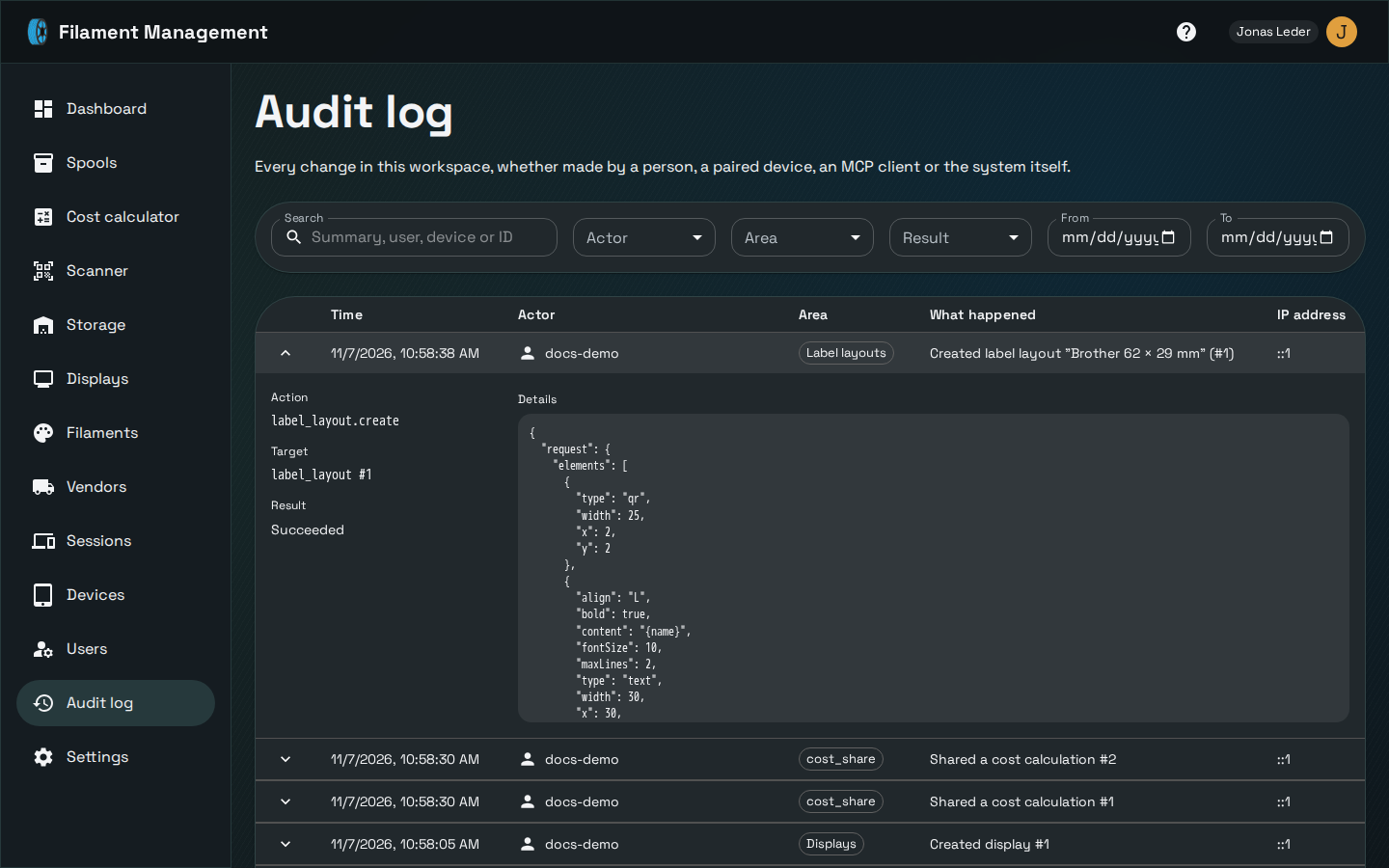
Click an entry to expand it. You'll see the internal action name, what it applied to, and the
details of the request. Passwords, client secrets and access tokens are never stored: they show
up as [redacted].
Filtering
Use the filters above the table to narrow the log by actor, area (for example Spools or Sign-in), result (succeeded or failed) and date range. The search box looks through summaries, user and device names, and IDs.
Retention
Entries are kept for 365 days by default. To change this, set Audit log retention (days) in
the Global settings section of Settings. Older entries are removed once a day, and each
removal is itself recorded in the log. Set the retention to 0 to keep entries forever.
The audit log isn't part of backups. Restoring a backup keeps the existing log and adds an entry for the restore.