Label layouts
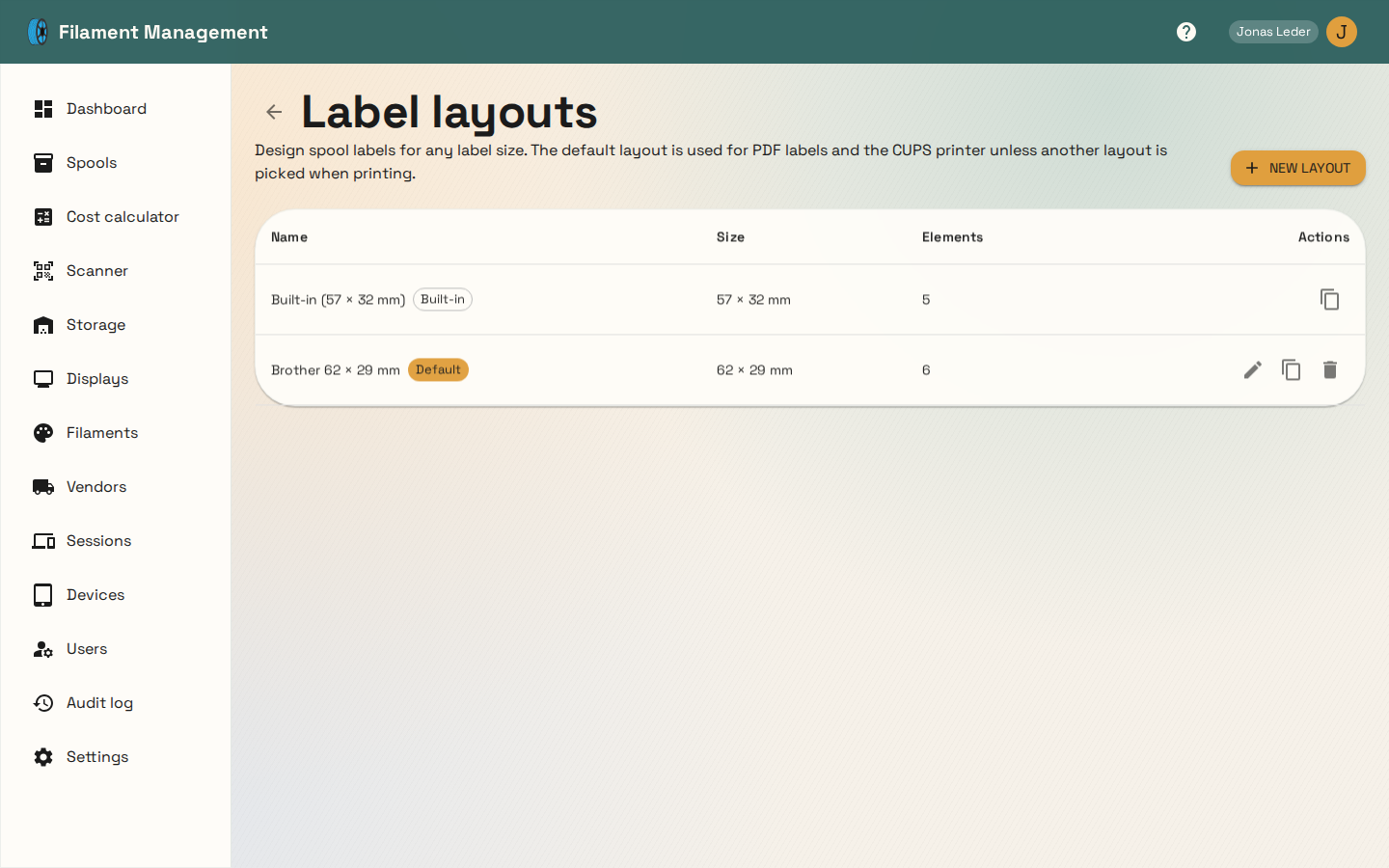
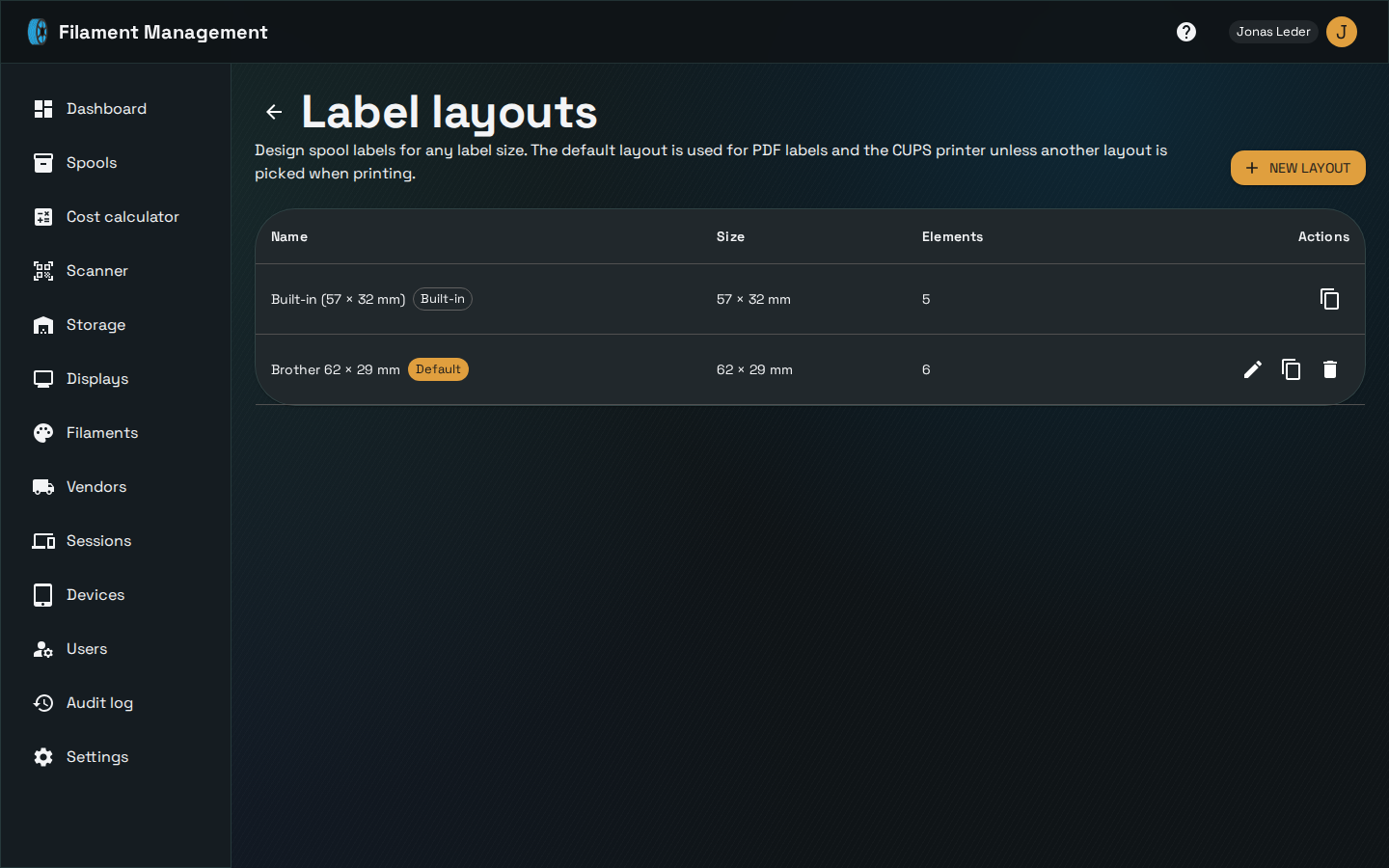
Out of the box, spool labels are 57 × 32 mm with a QR code on the left and the filament name, vendor, material and spool ID on the right. If your printer uses a different label size, or you want a different arrangement, you can design your own layouts. Open Settings, go to the Label printer (CUPS) section and click Design label layouts. Only admins can create and edit layouts.
Creating a layout
Click New layout and pick a common label size (for example 62 × 29 mm Brother DK labels or 4 × 2 inch shipping labels), or choose Custom size… and enter your own width and height in millimetres. Each new layout starts with a QR code and the usual spool details, sized to fit the label. You can also duplicate the built-in layout or any of your own layouts and change the copy.
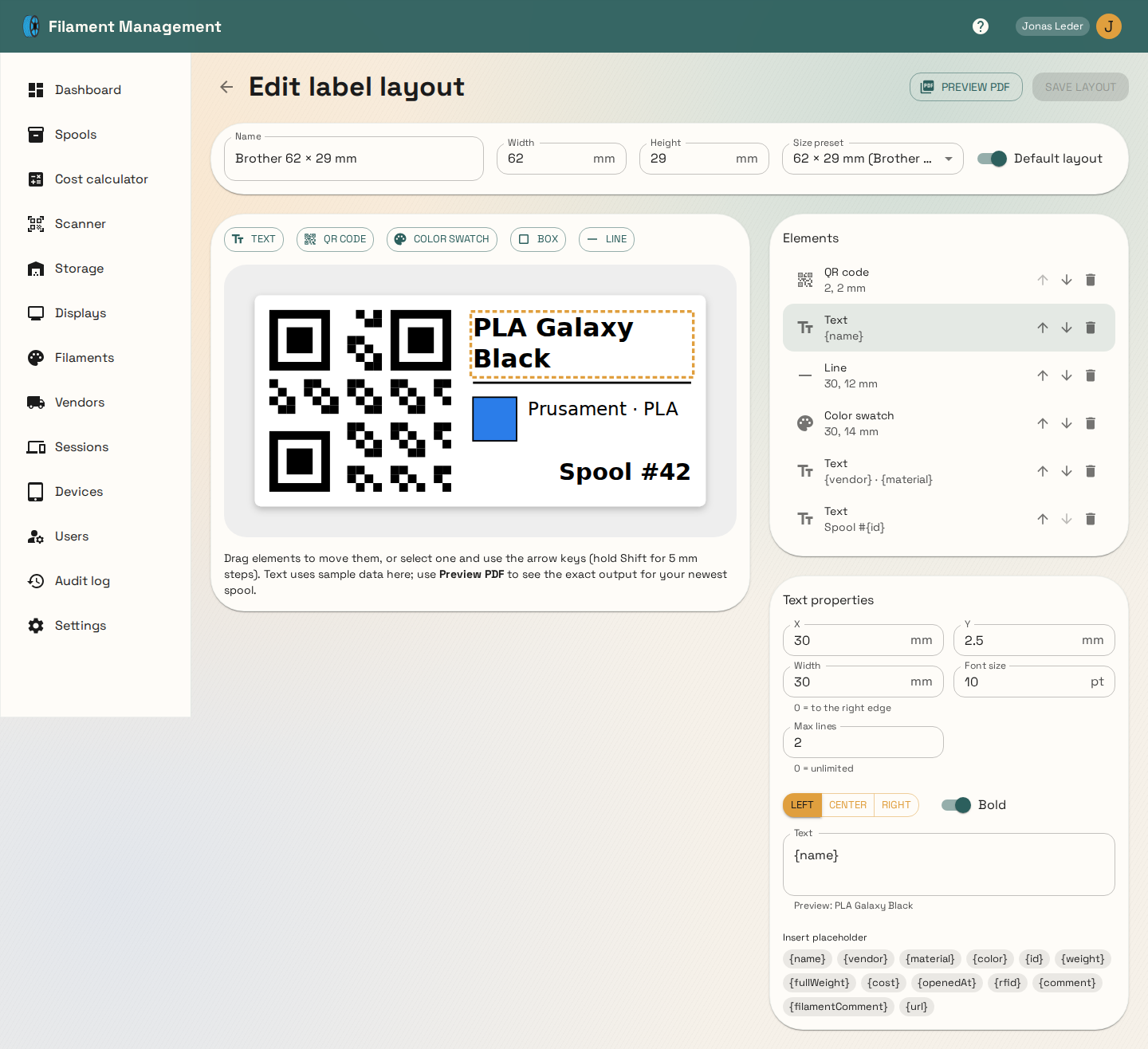
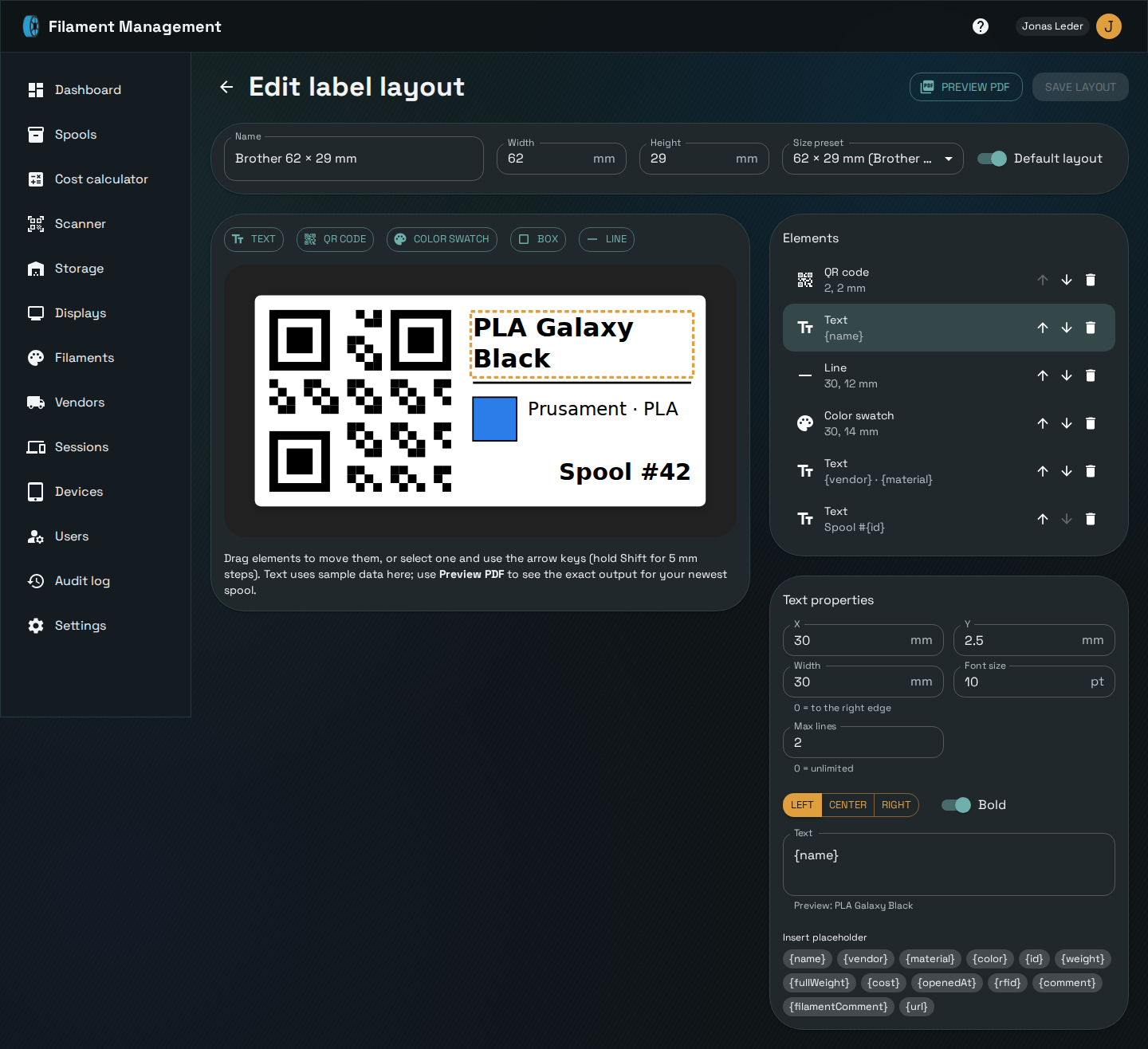
The editor shows a live preview of the label. You can add these element types:
| Element | What it prints |
|---|---|
| Text | Any text, with placeholders for spool data. You can set the font size, bold, alignment, width and a maximum number of lines. Text that is too long wraps onto the next line. |
| QR code | Links to the spool in the app by default, so scanning it opens the spool. You can enter your own content instead. |
| Color swatch | A square filled with the filament's color. On monochrome printers it prints as a gray tone. |
| Box | A rectangle, outlined or filled. Useful as a border or to divide up the label. |
| Line | A straight line of any length and thickness. |
Drag elements on the preview to move them, or select one and nudge it with the arrow keys (hold Shift to move in 5 mm steps). Exact positions and sizes, in millimetres, are in the properties panel. Elements further down the list are drawn on top; use the arrows next to each element to change the order.
The preview fills in sample data. Click Preview PDF to see the exact output for your newest spool before you save.
Placeholders
Text and QR code content can contain these placeholders. When a label is printed, each one is replaced with that spool's data:
| Placeholder | Value |
|---|---|
{name} | Filament name |
{vendor} | Vendor name |
{material} | Material (PLA, PETG, …) |
{color} | Filament color as a hex code |
{id} | Spool ID |
{weight} | Current weight in grams |
{fullWeight} | Full spool weight in grams |
{cost} | Spool cost |
{openedAt} | Date the spool was opened |
{rfid} | RFID tag |
{comment} | Spool comment |
{filamentComment} | Filament comment |
{url} | Link to the spool in the app |
The default layout
Turn on Default layout in the editor to use a layout for all labels. Only one layout can be the default. If none of your layouts is the default, or you delete the default one, the built-in 57 × 32 mm layout is used again.
Printing with a specific layout
Once you have at least one layout, the Spools page shows a Label layout picker next to the print buttons. The layout you pick is used both for PDF labels and for jobs sent to the CUPS printer. Your browser remembers the choice. Leave it on Default layout to use the workspace default.
Label layouts are included in backups.