Logging in
Login is a two-step flow: enter your username first, then either a password field appears, or — if your account uses single sign-on — you're redirected straight to your identity provider.
Step 1 — username
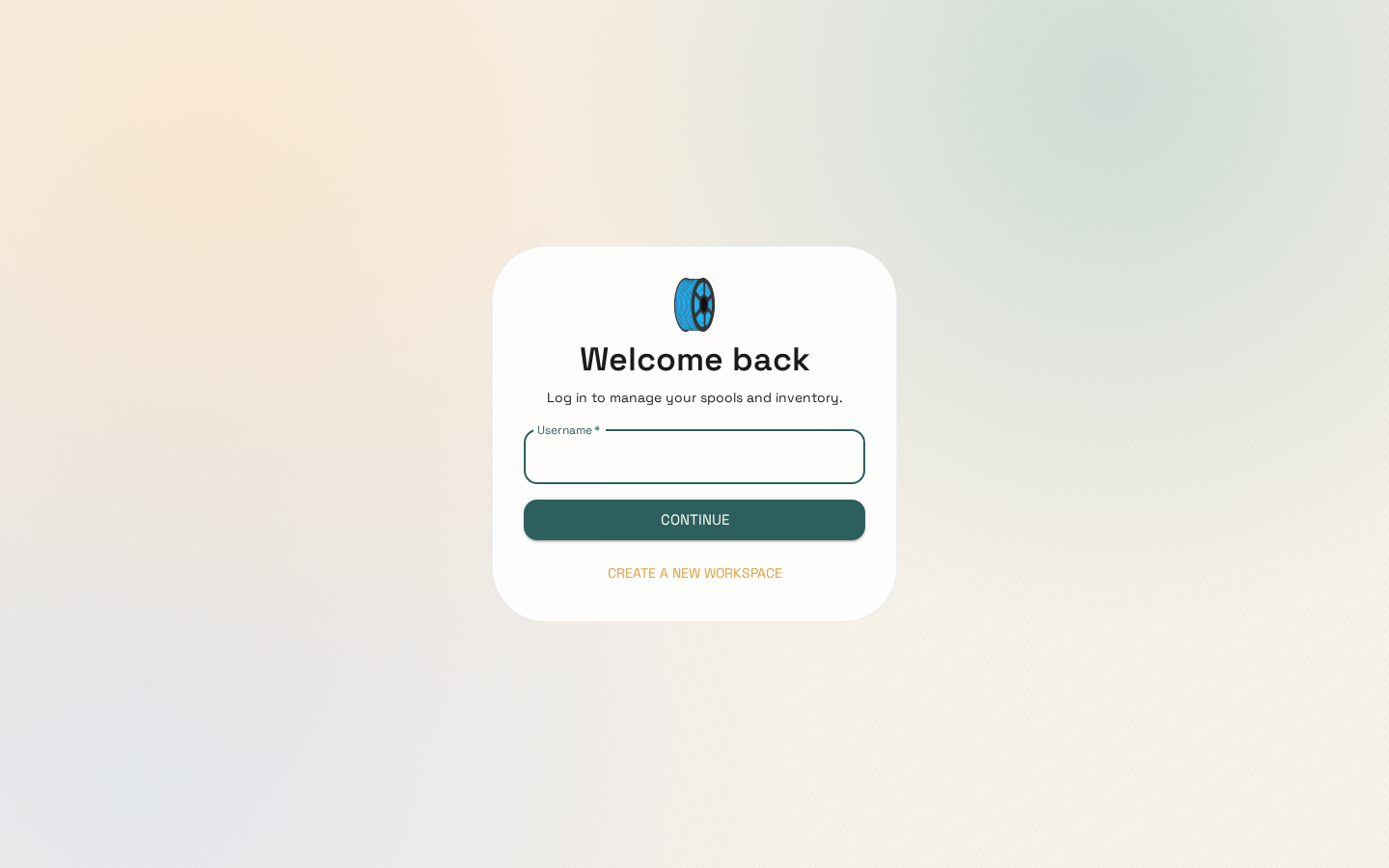
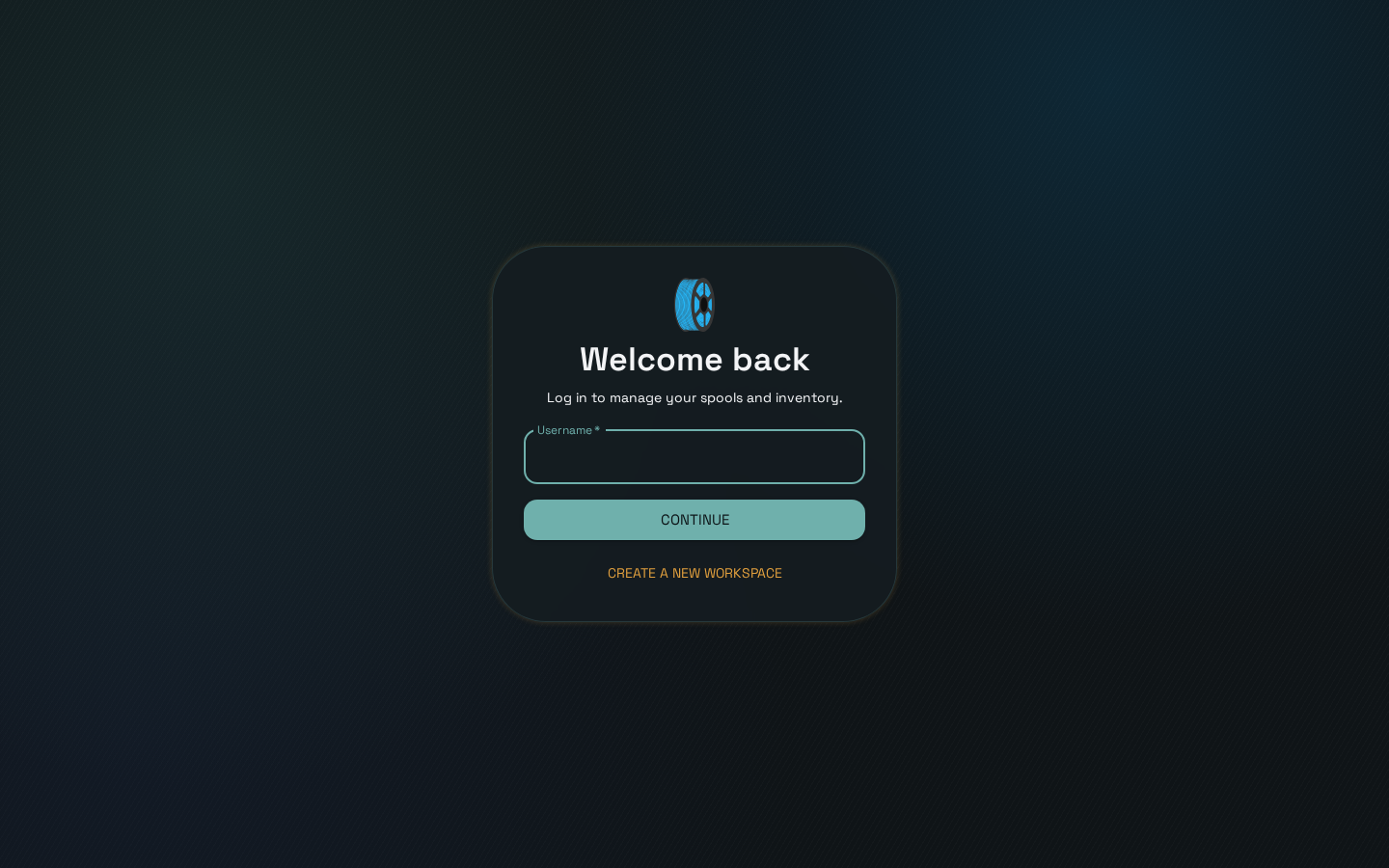
The app looks up your username (usernames are unique across the whole deployment) and checks whether it belongs to an external/SSO account. This lookup is deliberately privacy-preserving: an unknown username and a known-but-local username resolve identically, so this step can't be used to find out which usernames exist.
Step 2 — password (or SSO redirect)
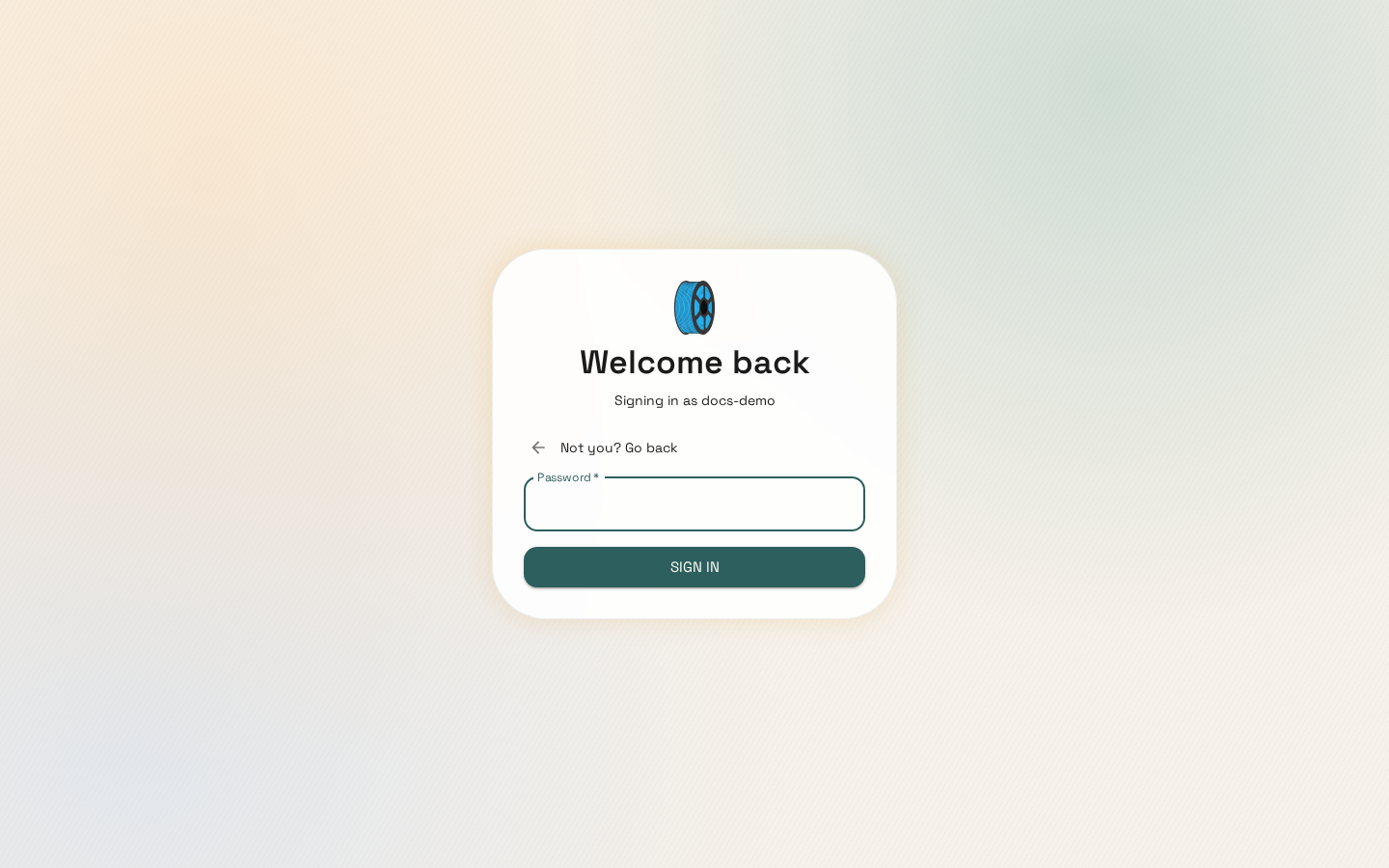
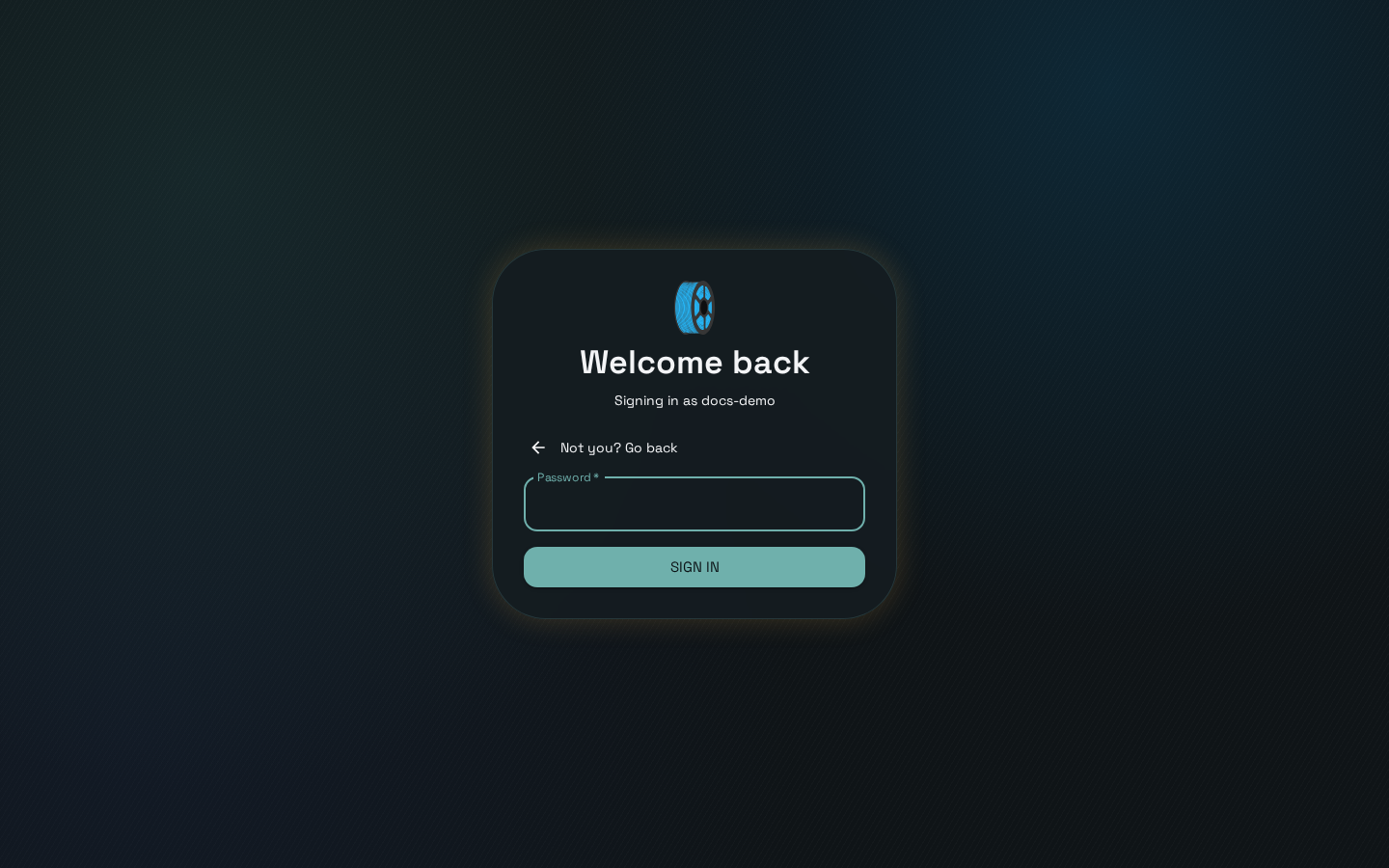
If your account is a regular local account, you're prompted for your password:
If your workspace has OpenID Connect configured and your account is external, you're redirected to your identity provider instead — no password field is shown at all.
The general login page never shows an SSO button
Visiting the plain login page directly (with no ?tenant= in the URL) never offers a
"Sign in with OpenID" button, even if some workspace has SSO fully configured — there would be no
way to know whose identity provider to redirect to without that context. Each workspace instead
gets its own tenant-specific login link (found on the Settings page) that carries its tenant
ID and does show the SSO button when applicable. Share that link with your team rather than the
bare /login URL if your workspace uses SSO.